SC OBD2 guide: making sense of trips, fuel use and costs
Read an OBD2 code · First connection · Trips, fuel use and costs
Review trips in SC OBD2, compare similar journeys and tell vehicle readings, calculated fuel use and estimated fuel cost apart.
This guide covers SC OBD2 Legacy 6.1.27.13 (1063), the public reference version. Alpha 7.1.x screenshots may show different controls.
Find your way around the app
SC OBD2 connects your Android phone to the diagnostic data your car makes available through a compatible OBD2 adapter. Start with a fault code or explore the available readings while the car is running normally. A code describes a condition detected by a control unit; it does not identify a part that must be replaced.
Version 6.1.27.13 includes Live data, diagnostics, profiles and history. Check the connection first, then choose the area that fits your task. A saved trip summary does not prove that a connection is active now. Available features depend on your vehicle, adapter, settings and licence.
Connect to your car
With the vehicle stationary, locate the diagnostic socket using the vehicle handbook and connect a compatible adapter. Check that it has power. Select the adapter’s connection type in the app settings; choose the correct Bluetooth device or follow the manufacturer’s Wi-Fi network, address and port instructions.
Start the connection in the app and check its status before interpreting readings. A phone-to-adapter connection does not necessarily mean the vehicle’s control unit is responding. Follow the vehicle instructions for ignition and engine state instead of changing settings at random.
Choose a compatible adapter
An OBD2 socket does not connect a phone directly to a car. You need an adapter that supports the vehicle protocol and the connection used by the app. Check the exact model and the manufacturer’s instructions. An ELM327 label alone does not guarantee quality, compatibility or access to every reading.
Try basic readings before buying additional software features. A software licence cannot add sensors to a control unit or make an incompatible connection work. Keep the adapter model and connection type handy; both are useful when asking for support.
If the connection fails
Check adapter power, the selected device or network and the required Android permissions, in that order. If another app is using the same adapter, end that connection before retrying. If the adapter responds but the vehicle does not, check the conditions specified by the manufacturer.
For support, note the message, when it appears, your app and Android versions and the adapter model. Do not send passwords or personal vehicle identifiers. Do not erase your data and profiles just to retry a connection.
Read fault codes in context
In diagnostics, distinguish codes previously stored in the app from a current reading of the vehicle’s control units. Connect to the car and run the available read operation. Keep the exact code and describe symptoms and circumstances: a warning light, noise or loss of power does not become a diagnosis simply because a DTC appears.
Standard OBD code reading is available in Free; clearing depends on recognised Full rights and vehicle support. Clearing does not repair the cause and may remove useful information. To learn more, look up the exact code in the website catalogue.
Follow parameters in Live data
After your first connection, a long list of numbers may not tell you much. Start with a simple question: what do you want to observe, and under which conditions? Following a few readings you understand makes it easier to see what your car actually provides.
Read the value, unit and source together
Where supported, engine speed, coolant temperature and engine load can help describe a situation. Their meaning depends on what the vehicle was doing. An isolated reading does not certify normal operation or prove a fault, and there is no universal threshold in this guide for every engine.
Keep the sources distinct. An OBD parameter comes through a control unit; a phone reading, such as an available GPS measurement, follows a different path; a calculated value depends on its inputs and settings. These are not interchangeable measurements. Units, whether the reading is current, and the surrounding conditions matter as much as the number.
Display parameters
Choose what appears in your data view
In the currently distributed version, open Live data, the PIDs tab and the list icon. Display parameters lets you search for readings by name and choose them with checkboxes. Back in the data view, you can focus on the selected parameters that the vehicle and your licence support.
A parameter appearing in the list does not guarantee a useful response from the car. Some parameters need Full; others are unavailable because the vehicle does not provide them. Check the connection and basic readings before considering an upgrade. To keep data over time, check profiles, settings and the saved history: seeing a live value does not prove that a sample was recorded.
When a reading is unavailable
An unavailable reading is not a measured zero
If a field has no value, check whether the connection is active and other readings are arriving. A calculation may be missing an input; an OBD parameter may be unsupported or may require a particular reading condition. A blank field alone does not establish that a sensor has failed.
The useful outcome is knowing which readings are available, their units and the situation in which they were obtained. For support, give the parameter name and what the screen shows. When looking for a change over time, use records that were actually saved and whose conditions you can put in context.
Trips: compare records and conditions
- Select the correct vehicle profile and open history. Choose a period that contains recorded trips.
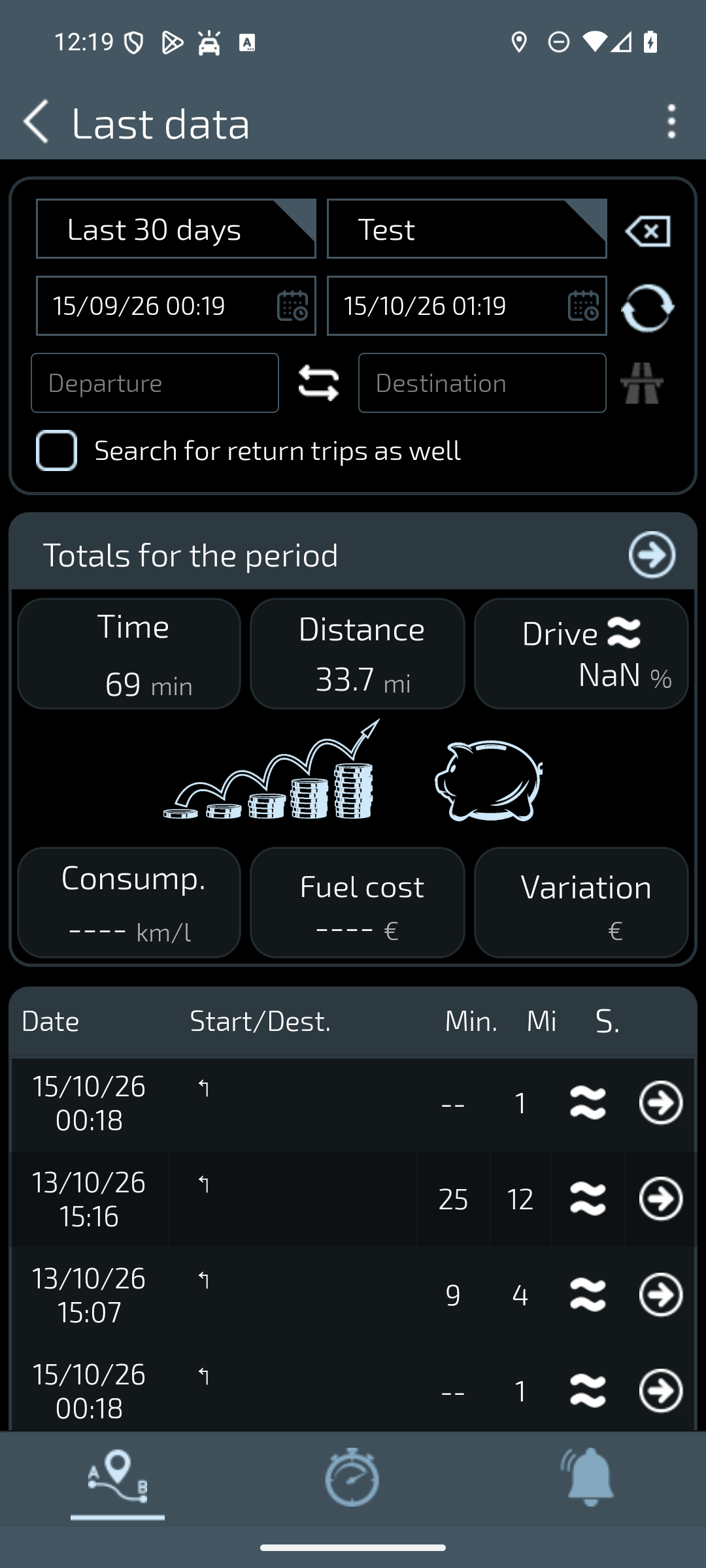
- Check distance, duration and which trips make up the total. If you use departure or destination filters, make sure they are not hiding relevant records.
- Open a trip’s details. Check units and available values before comparing it with another trip.
- For a route comparison, consider distance, traffic, stops and known conditions. History supports a manual comparison; it does not certify the best route.
For example, two weeks with the same total distance may consist of many short trips and a few long journeys. A difference in fuel use alone does not establish a mechanical fault or a change in driving skill.
When history is empty or cost is unavailable
Check the profile, date range and filters before concluding that records are missing. A value appearing in Live data does not prove it was saved. Protect the archive: do not reinstall or erase app data in an attempt to recover a trip.
The original screenshot below was captured on version 1063 using a test profile and simulator data. Duration and distance are visible, but fuel use and cost are unavailable; “NaN” also appears. This is a limitation of the example record, not zero consumption or a saving. The original values have not been corrected.
Fuel use and costs: readings, calculations and estimates
| Data type | What it represents | What to check |
|---|---|---|
| OBD parameter | Information sent by the control unit and decoded by the app. | Support, units and the conditions of the reading. |
| Phone data | Information from the device, such as GPS when available. | Permissions and input availability. |
| Calculated fuel use and cost | Results derived from readings, settings and recorded data. | Missing inputs, profile, units and the price used. |
Instantaneous fuel use describes a moment; an average describes an interval. Compare matching units: km/l and l/100 km express inverse quantities. A blank field, “---” or an unavailable calculation is not zero fuel use.
In Legacy 6.1.27.13, trip cost uses calculated average fuel consumption. When that is missing or zero, the calculation may use the expected consumption entered in the profile. It also uses distance and the price from the relevant refuelling record. The result is an estimate of fuel cost, not a charge for that journey or the total cost of owning the car.
Worked example, not an app result: 100 km at 20 km/l corresponds to 5 litres; at €1.80/l, the estimated cost is €9. Correct arithmetic does not prove that a real car used those litres. If the consumption input is an expectation rather than a reading, it remains an assumption in the calculation.
Enter only profile and refuelling information you know. Before interpreting a difference, check the price, units, profile and period. Do not invent a missing value just to complete a chart.
Understand performance readings
Performance and Stopwatch views show data and measurements available in the session. Read each value with its unit, source and recording conditions. A display peak does not certify the manufacturer’s power rating or the vehicle’s mechanical condition.
Review measurements that were actually saved rather than assuming every temporary value enters history. This guide does not call for acceleration or braking tests on public roads. Configure the app with the vehicle stationary and use measurements obtained safely.
Vehicle profiles and data
A profile stores information about your car and helps distinguish data associated with different vehicles. Select the relevant profile before reviewing history or changing its information. Fill required fields with reliable data, following the explanations in your installed version.
A profile cannot add sensors that the control unit does not support. Settings can affect calculations that use them, but do not guarantee the accuracy of every result. Before deleting a profile, read the confirmation and preserve any data you need.
Choose the correct profile
If a feature asks for a profile, open the vehicle list and select the correct one or complete the required information. Do not assign one car’s data to another simply to dismiss a message.
Follow the app’s instructions and use reliable information. Reading a value and saving it in history are separate matters: check what has actually been saved for the selected vehicle.
Settings and permissions
Configure connection, units and preferences for your intended use. Android permissions and in-app settings are different: selecting an app preference does not grant a system permission.
For connection and location, follow the requests made by your installed app and Android version. Screenshots and videos of newer releases may show different controls. A notification alone is not a guarantee of continuous background operation.
Free and Full licences
Version 1063 allows standard OBD code reading in Free. DTC clearing, some parameters and CSV depend on recognised Full rights. Check your adapter and vehicle with basic readings first: buying a licence does not change the data exposed by the car.
Check the price, terms and availability on the Google Play purchase screen. If you own a historical edition or grant, check the rights already recognised before buying again. Follow the purchase and recovery instructions for your installed version.
The 1063 Quick Guide
The Quick Guide brings together links to the main app features. Use it to find vehicle connection, Live data, diagnostics and history, choosing where to start according to what you want to explore.
You can read this guide in your browser for explanations of controls and data limitations. Before using a feature, check that connection, configuration and licence meet its requirements.
Instructions and screenshots
If the connection fails
Check adapter power, the selected device or network and the required Android permissions, in that order. If another app is using the same adapter, end that connection before retrying. If the adapter responds but the vehicle does not, check the conditions specified by the manufacturer.
Understand performance readings
Performance and Stopwatch views show data and measurements available in the session. Read each value with its unit, source and recording conditions. A display peak does not certify the manufacturer’s power rating or the vehicle’s mechanical condition.
Content author: Nicola Santini.
OBD2, PRO or Premium? Choose your app and check existing rights